


Repeatedly copying and pasting the same email response is a nightmare and wastes so much time! Creating canned emails is so easy and simple and will free up more of your time handling administrative tasks!
Here is a step-by-step on how to create canned emails in Gmail! In Gmail, click the Gear icon, then click ‘Settings’.
- Click the tab that says ‘Advanced’.
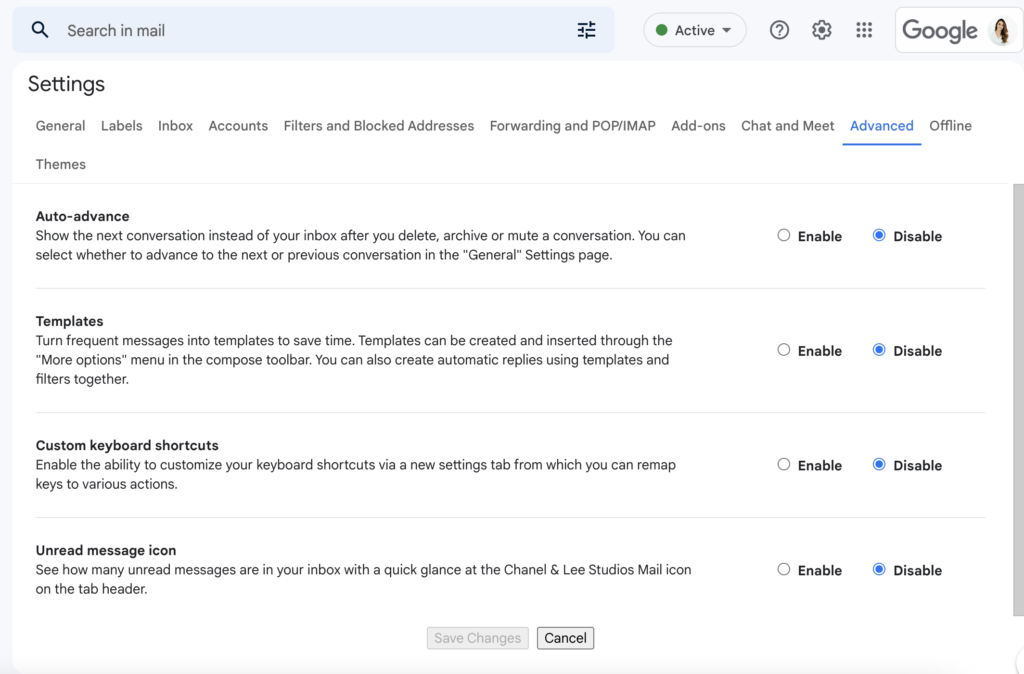
- Click ‘Enable’ on the ‘Templates’ prompt.

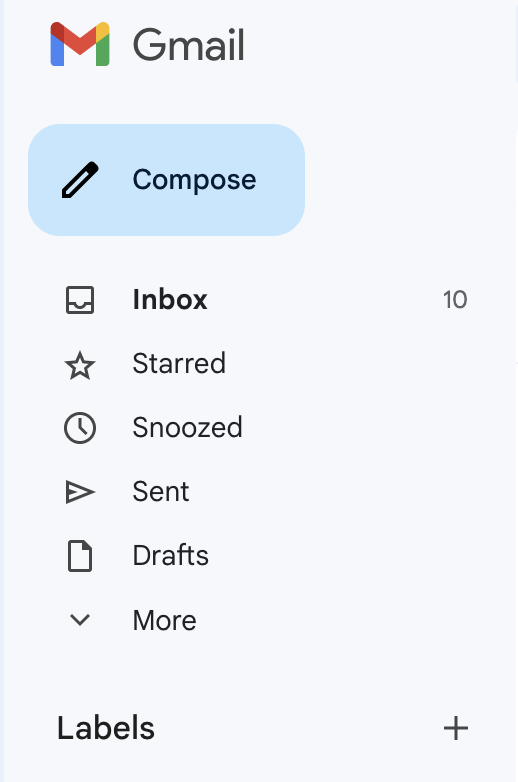
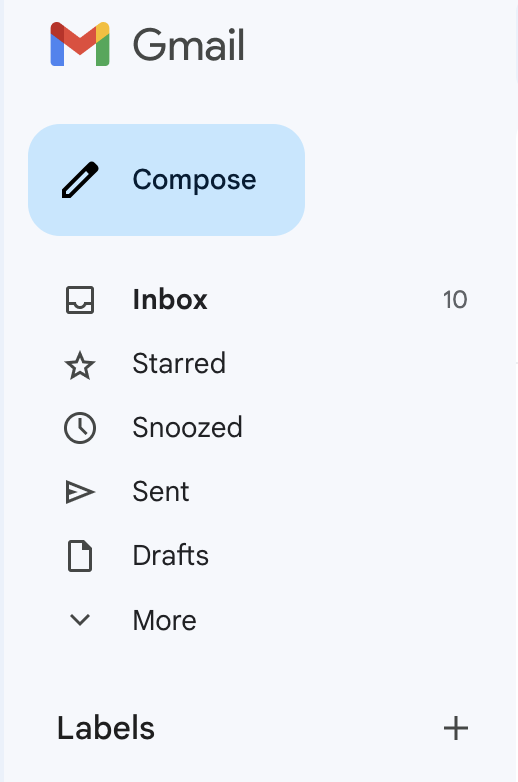
- Start a new email by hitting ‘Compose’ in the upper left-hand corner of your inbox.
- Type the email message you’d like to save as a template.
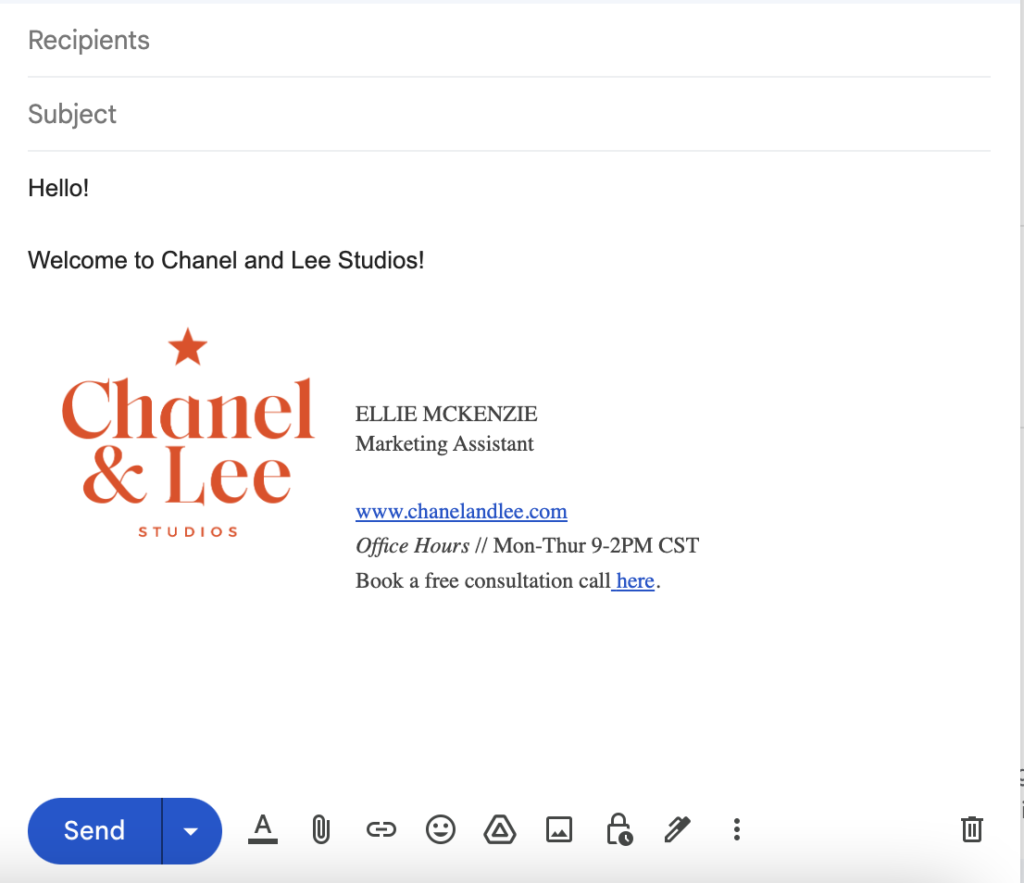
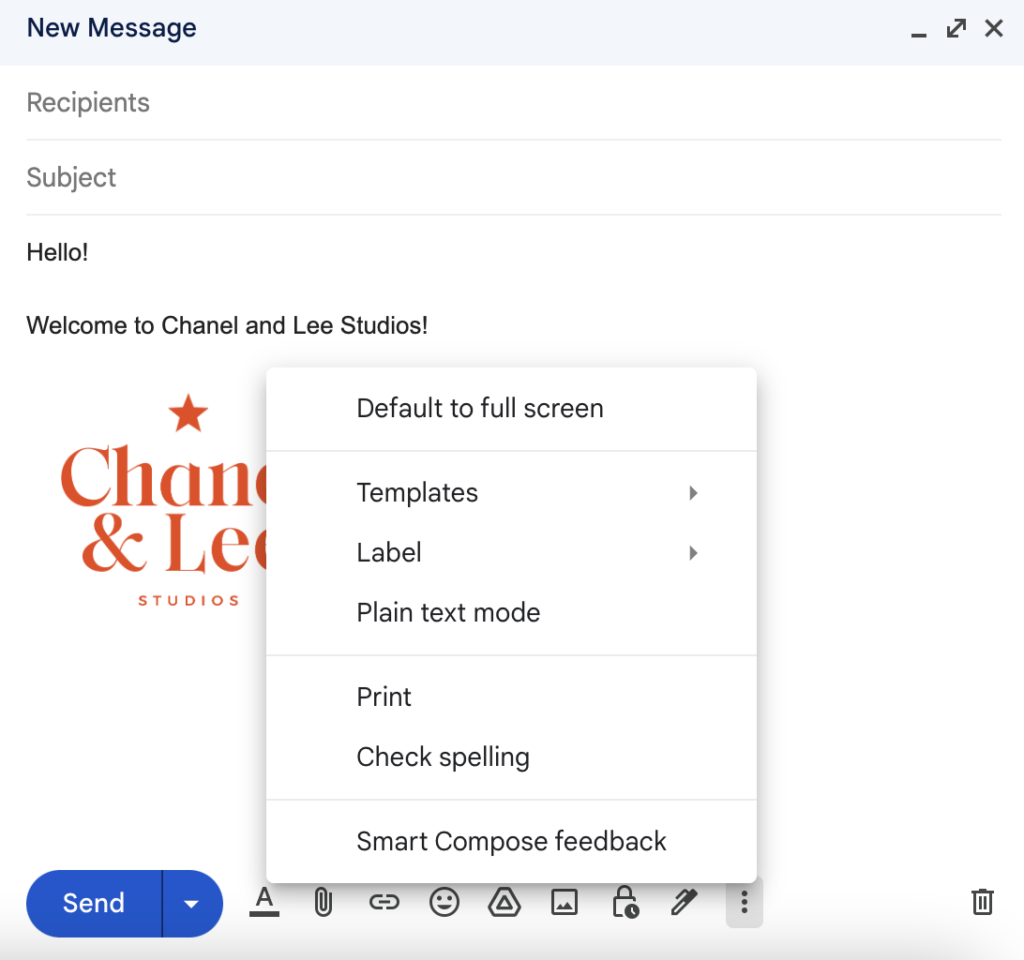
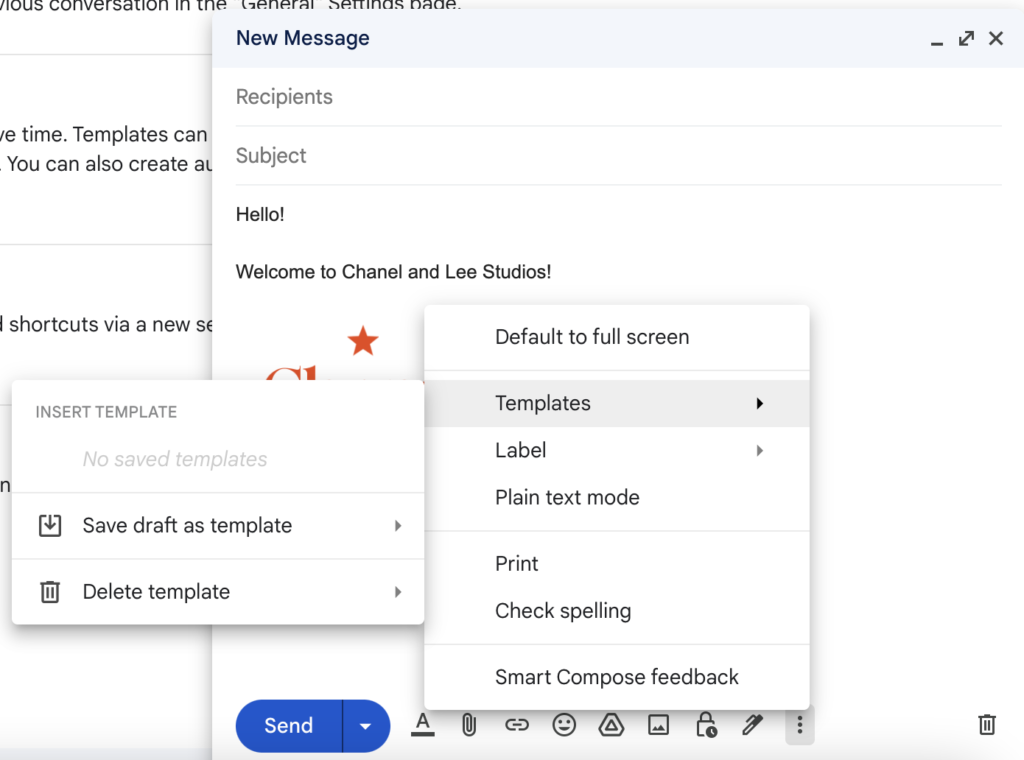
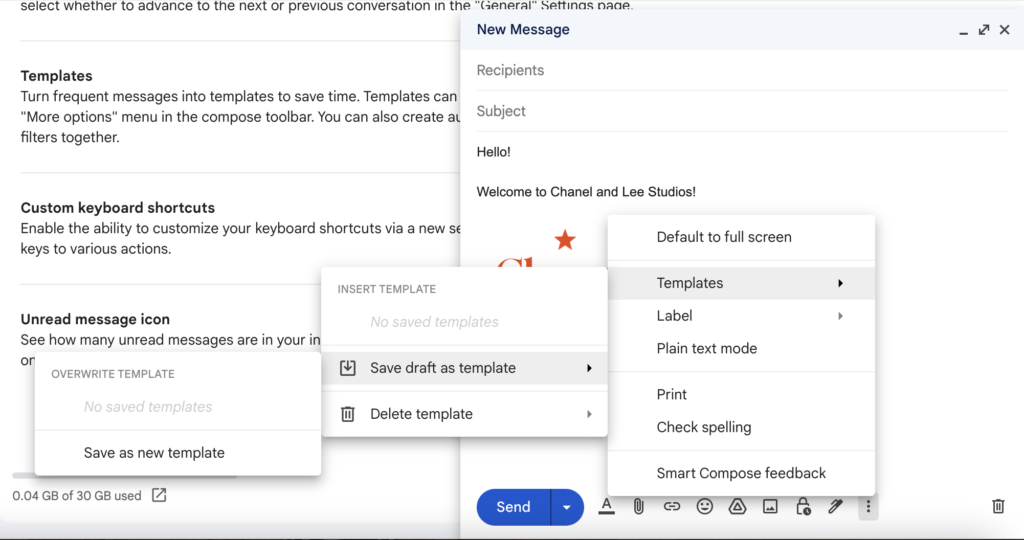
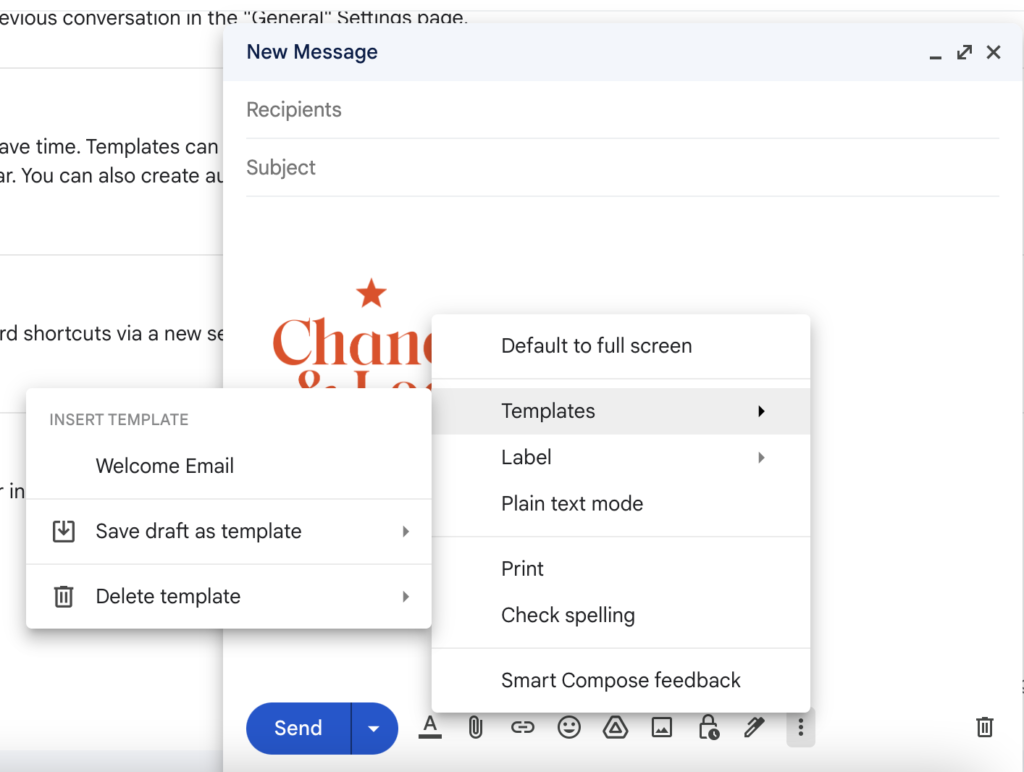
- Click the three dots icon on the bottom right-hand corner of the compose window, hover over ‘Templates,’ ‘Save draft as template,’ and then click ‘Save as new template’.
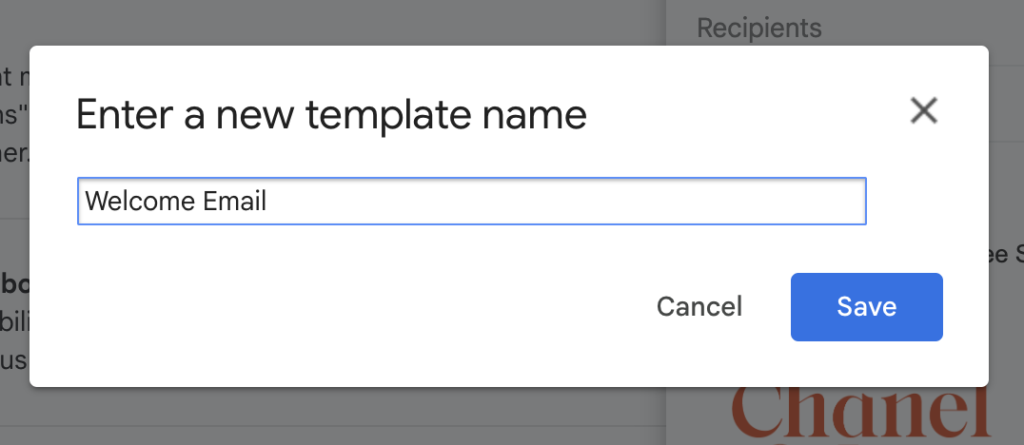
- Name your template.
- Start a new email by hitting ‘Compose’ in the upper left-hand corner of your inbox.
- Click the three dots icon on the bottom right-hand corner of the compose window, hover over ‘Templates,’ then click on the template name.
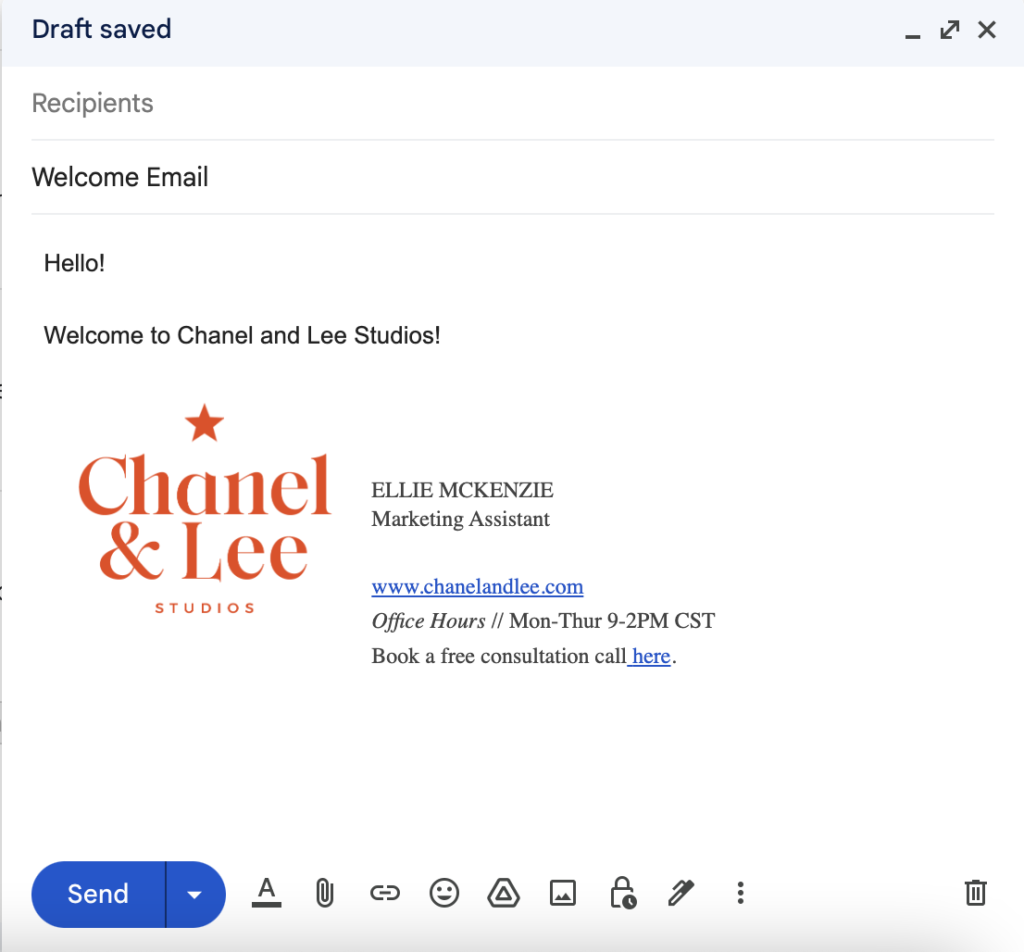
- After the response is pasted, add your recipient and click ‘Send’.
How to Edit a Canned Response in Gmail
Once your canned responses are created, they are so easy to modify! Here are the steps to edit those responses.
- Compose a new email, and insert the template you would like to edit in the body of the email.
- Make any necessary changes, and tap the three dots on the bottom left-hand side of the email window.
- Go to ‘Templates’ > ‘Save draft as template’ > ‘Overwrite Template’ and select the template you are updating.
How to Delete a Canned Response in Gmail
If you want to get rid of a canned response altogether, follow these steps to delete it:
- Go to ‘Templates’ > ‘Delete template’ and select the template you want to delete.
Canned responses might seem like a small change, but these little changes will make such an impact on your response time for your clients because you’ll no longer dread replying to emails and copying the same email over and over! If you’re looking for done-for-you email copy, head to the C&L Shop to grab 20+ canned emails to add to your client communication.


Comments +